 School






Rolling out an MFL platform across a department: a staged school plan
A practical staged plan for rolling out an MFL platform: owner, school contacts, teacher/class setup, pupil identity, login testing, first task, evidence checks and controlled expansion.
Grade 9 School brings curriculum, lesson planning, practice, homework, feedback, live activities, printables and progress tracking into one connected teaching workflow.
 Spanish
 French
 German
 Portuguese
 Italian
Practice, feedback and progress in one place.

A department rollout does not need to begin with every teacher, every class and every feature.
The quickest useful start is to prove one complete loop:
owner → teacher access → one class → pupil login → one low-stakes task → evidence check → teacher action.
Once that works, repeat the pattern.
This page is about implementation sequence. Privacy, AI governance, GDPR/DPIA and progress analytics each have their own detailed guide; the rollout should point to those decisions rather than reproduce them.
Explore the topic ↓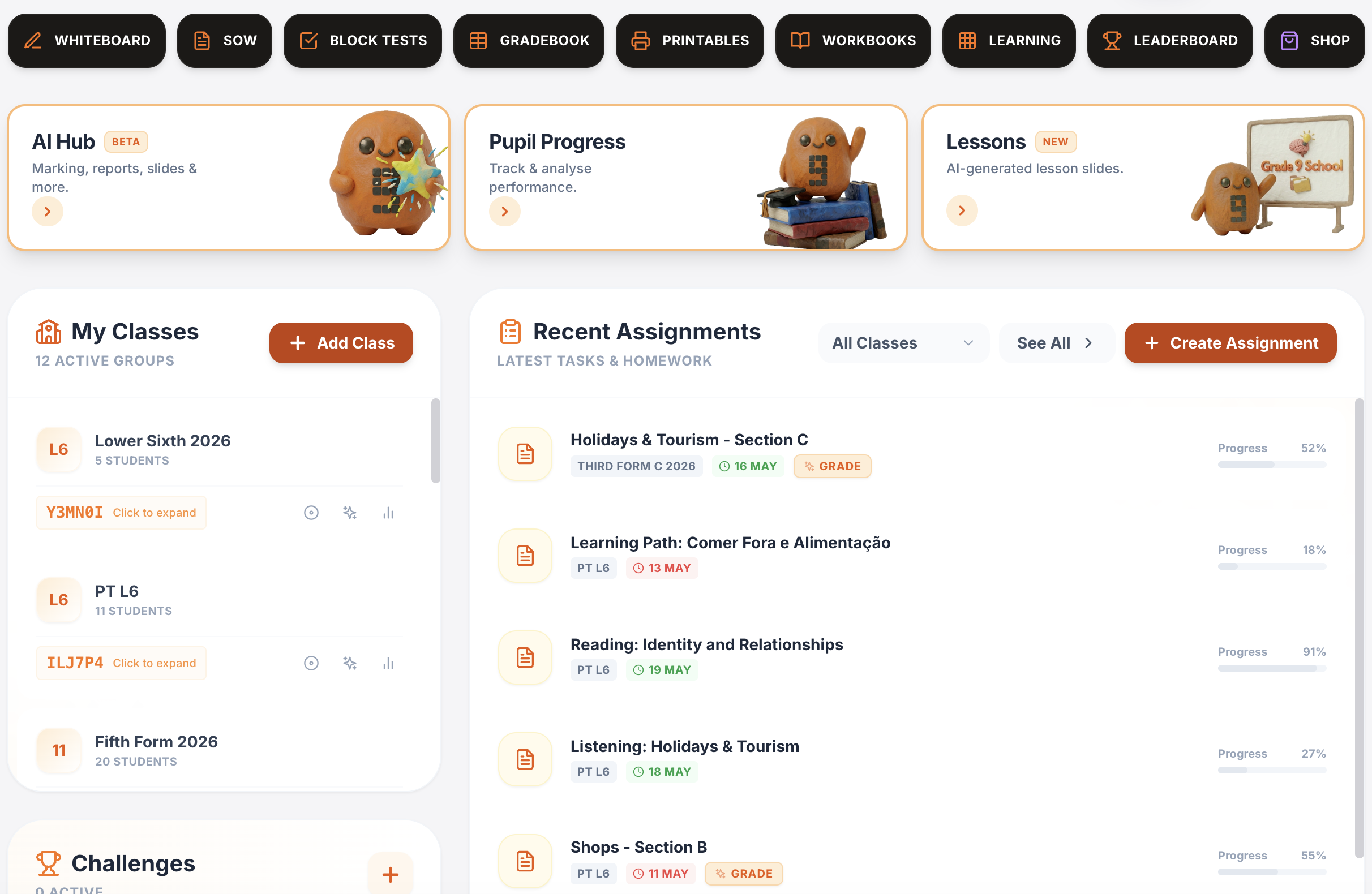
One platform for teaching, practice, feedback and progress.
Plan lessons, set homework, run live activities, generate printables, give AI-supported marking and track progress across Spanish, French, German, Portuguese and Italian.
Writing & speaking marking
Set writing and speaking tasks, collect submissions, generate detailed feedback and keep teacher review in the loop.
Explore this guide →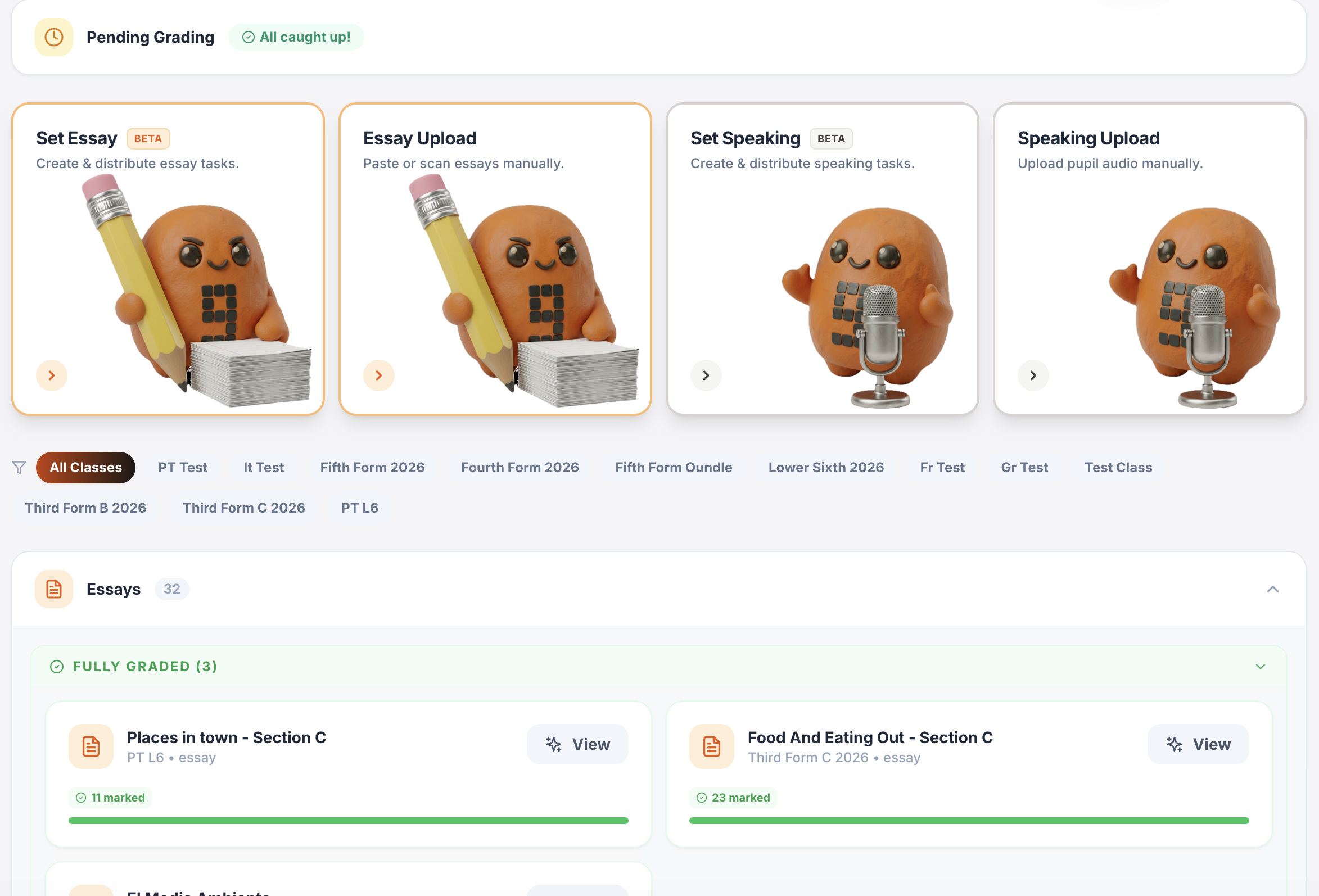
Gradebook & reports
Track scores, completion, engagement and learning evidence across classes.
Explore this guide →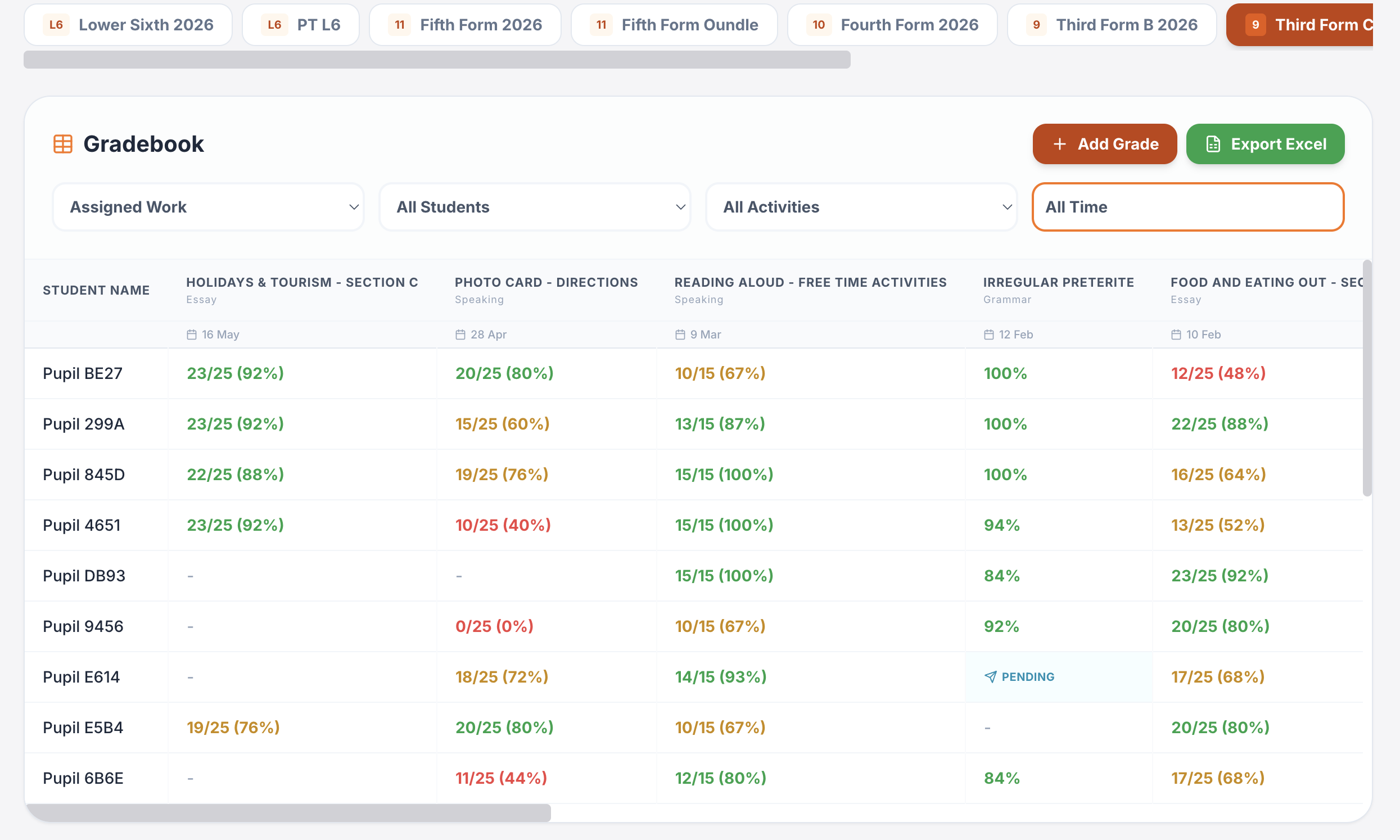
Interactive lessons
Generate, edit, save and reuse complete lesson presentations.
Explore this guide →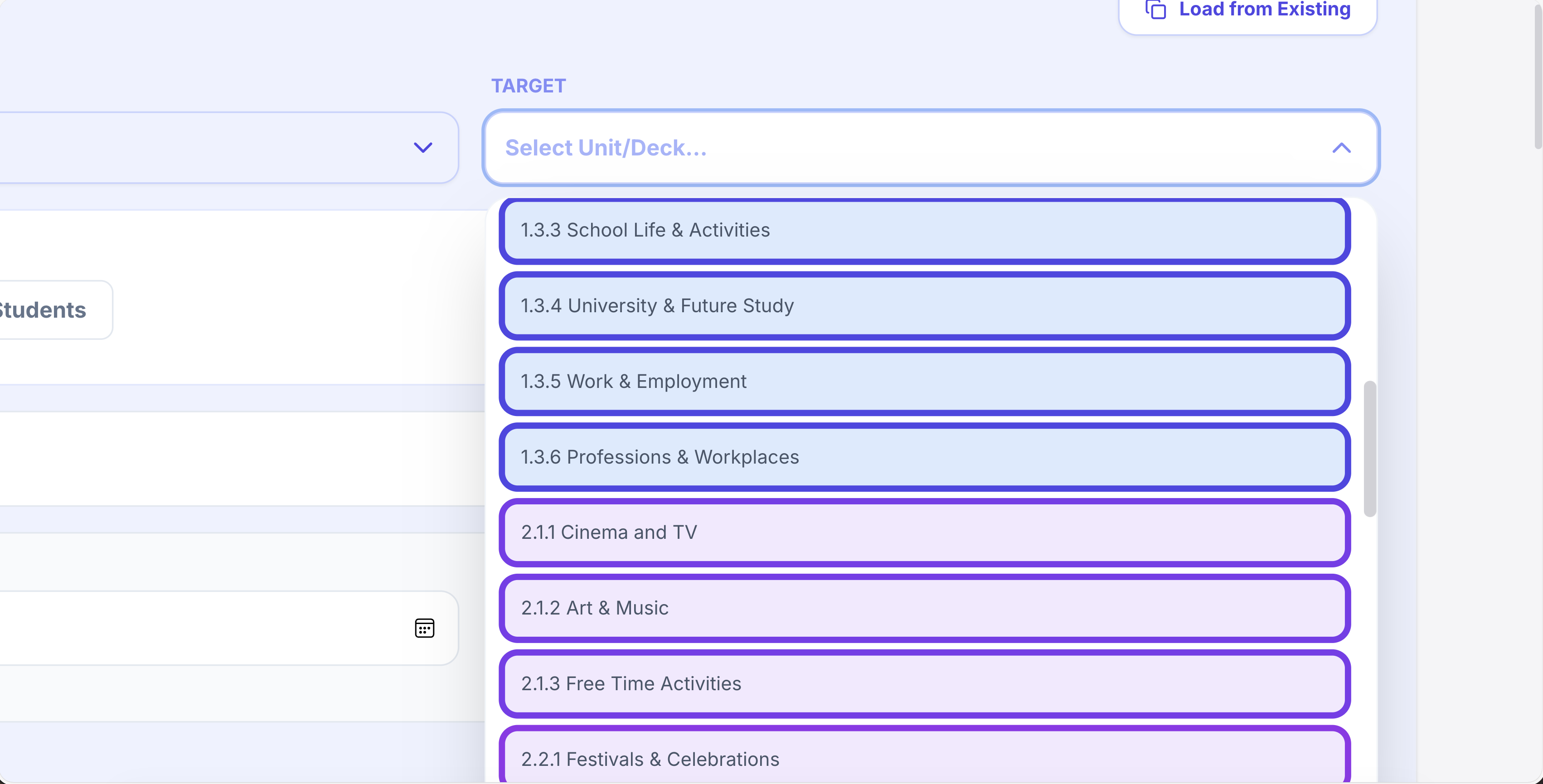
Printables in seconds
Vocabulary, grammar, translation, reading, listening, worksheets and booklets.
Explore this guide →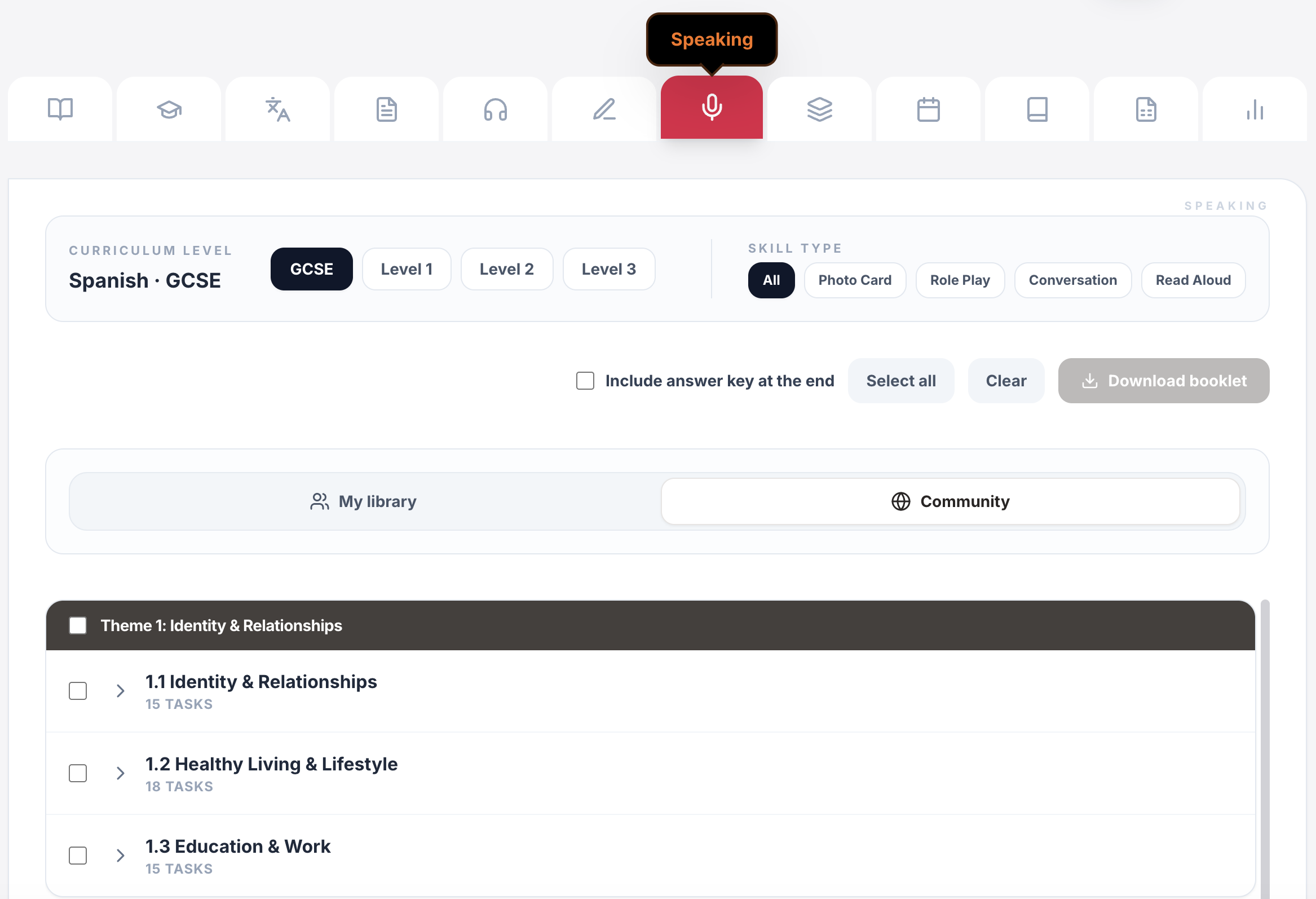
Live games & whiteboards
Turn curriculum content into whole-class competition, retrieval and live response.
Explore this guide →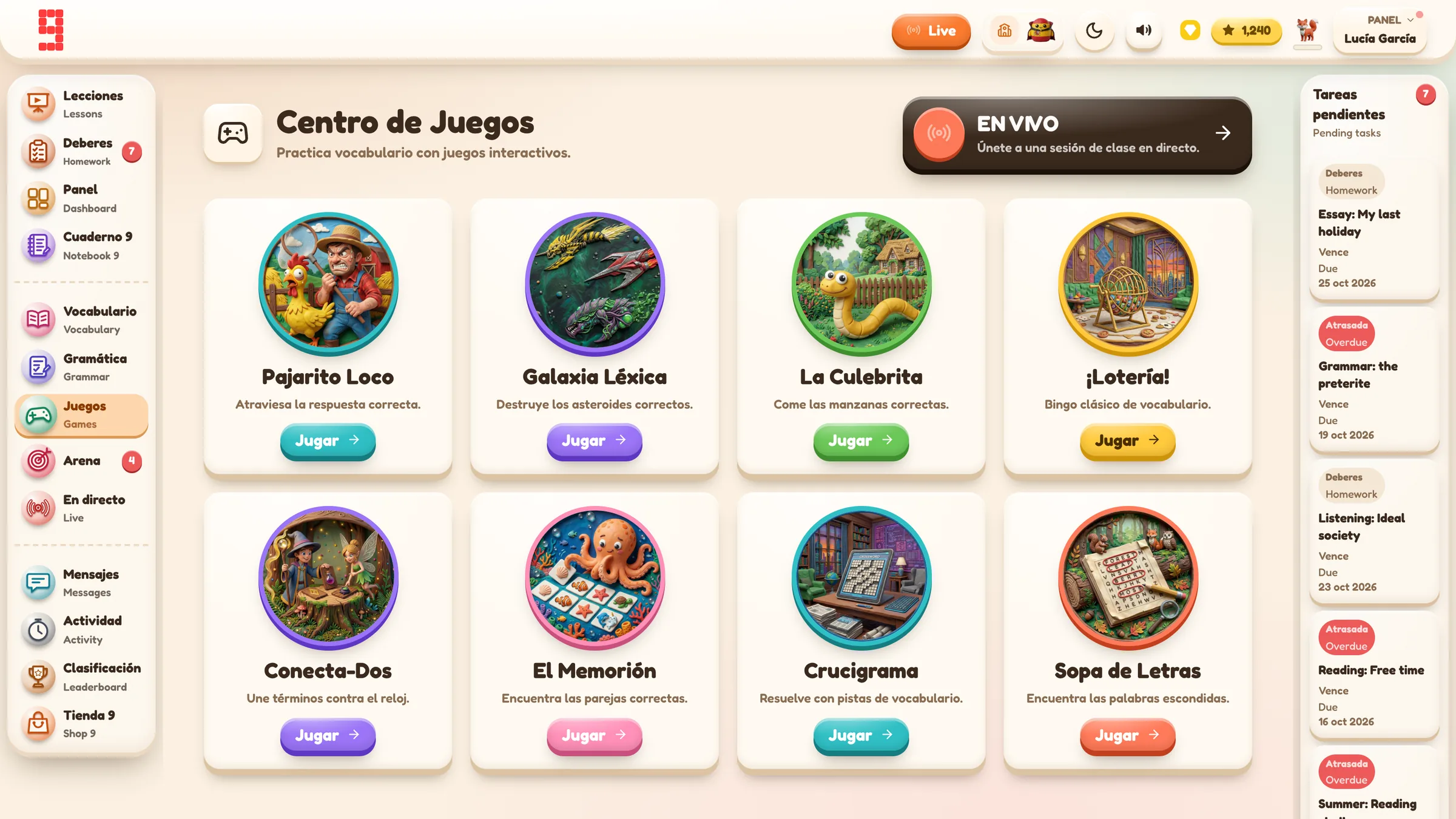
Assignments & tracking
Set work for a whole class or selected pupils, schedule it and see who has started or finished.
Explore this guide →Vocabulary, grammar, translation & independent practice
Structured learning paths, flashcards, vocabulary builders, grammar, verb work, translation and tracked independent learning across supported languages.
Explore this guide →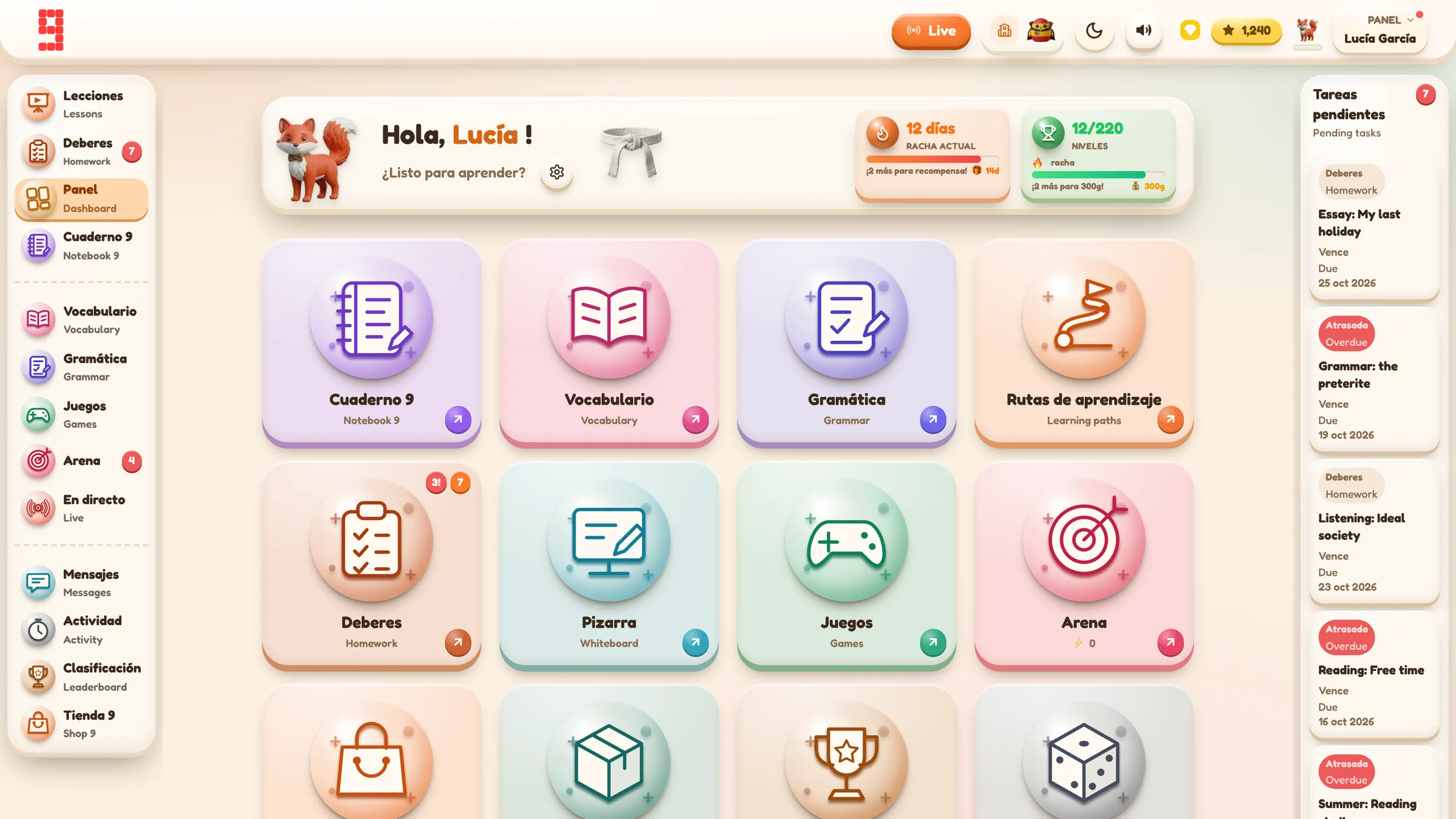
Spanish · French · German · Portuguese · Italian
Use the same platform architecture across the languages your department teaches, while keeping each class in its own language and curriculum context.
Explore language workflows →
From planning to progress, it all connects.
Curriculum management, assignments, AI feedback, printables, gradebook and lesson planning all sit inside the same Grade 9 environment.
Find the detail you need.
Open any section for the key facts, practical detail, examples and sources.
01Stage 0: name the owner and the school-side contacts⌄
Choose one person to own the rollout.
That person does not need to be the most technical teacher. They need to know:
- which teachers and classes are in scope;
- what the department wants to achieve first;
- who can answer a curriculum question;
- who can escalate an IT or data-protection question;
- what the next implementation step is.
For a small department, this may simply be the Head of MFL plus one colleague who tests the workflow first.
Confirm the useful school-side contacts before pupil setup begins:
- Head of MFL / department lead;
- IT;
- DPO or data-protection contact where needed;
- finance/procurement where relevant;
- the supplier support contact.
If a DPIA, processor review or contractual check is required, deal with that through the school’s normal process rather than burying it inside staff training. The GDPR guide for MFL platforms covers the due-diligence questions in detail.
02Stage 1: define the first implementation target⌄
Choose one or two outcomes for the first rollout cycle.
For example:
- one teacher can create the correct class;
- one small pupil group can sign in reliably;
- one low-stakes assignment reaches the intended pupils;
- the teacher can find the saved result afterwards.
Avoid “everyone should use the platform” as the first target. It is too broad to diagnose when something goes wrong.
03Stage 2: configure teacher access and one class⌄
Start with one teacher and one real or test class.
Check:
- teacher access;
- class name;
- target language;
- Year group;
- curriculum or custom curriculum;
- any department naming convention.
In Grade 9 School, Year group and curriculum are separate settings. Check both rather than assuming one implies the other.
A short first staff session should make the teacher complete one actual workflow, not tour every menu.
04Stage 3: decide the pupil identity model before importing the roster⌄
Make the privacy/account decision before real pupil data is imported.
Questions include:
- Will pupils use school SSO or teacher-created username/password accounts?
- Are pupil names needed in the platform?
- Are pupil email addresses needed?
- Will the department use pseudonymous identifiers?
- If there is an internal mapping back to real pupils, where will the school keep it?
Do not recreate the full privacy case in rollout training. Use the dedicated pupil accounts without email guide for the distinction between direct identifiers, pseudonymous accounts and the learning data that still remains.
In Grade 9 School, the teacher-created username/password route does not require pupil email addresses.
05Stage 4: test login before the important lesson⌄
Do not make the first high-stakes task the moment you discover that several pupils cannot sign in.
Run a low-stakes login check first.
For a Grade 9 teacher-created class:
- create or import the pupil accounts;
- save the generated login PDF;
- distribute credentials privately;
- ask pupils to sign in;
- resolve credential problems before the main task;
- use the reset route if credentials are lost rather than creating duplicate accounts.
Treat any login sheet as credentials. Do not project the whole class sheet.
06Stage 5: set one low-stakes task⌄
The first task should test the implementation, not the limits of the platform.
Choose something easy to recognise and easy to check, such as a short vocabulary or grammar assignment.
Confirm:
- the correct pupils received it;
- any release/schedule setting behaves as expected;
- the due date is correct;
- the teacher can find the task afterwards;
- the result is saved when pupils complete it.
If the platform supports both whole-class and selected-pupil targeting, test the audience you actually intend to use.
For fuller homework-design guidance, use the MFL homework guide.
07Stage 6: check the evidence and make one teaching decision⌄
After the first task, do not train staff on every analytics screen.
Answer two questions:
- Can the teacher find evidence that the intended pupils completed the task?
- Can the teacher use that evidence to decide what to do next?
Completion and performance are different questions, but this rollout page does not need to reproduce the full model. The MFL progress-tracking guide owns that distinction and the detail about interpreting activity evidence.
For the first rollout check, it is enough that the teacher can retrieve the result and turn it into a practical next action.
08Stage 7: expand in a controlled pattern⌄
Only after the first loop works should the department expand.
Repeat the same administrative skeleton:
- teacher access;
- consistent class setup;
- agreed pupil identity model;
- login check;
- one known assignment pattern;
- evidence check;
- teacher action.
Then add more classes, more teachers and more complex workflows in stages.
If the department wants to introduce AI-supported features, treat that as a separate governance decision rather than an automatic next button. Use the teacher-controlled AI guide for who initiates the process, what data is sent, what the teacher reviews and what reaches pupils.
09A compact two-week rollout example⌄
Before week 1
The Head of MFL:
- names the rollout owner;
- confirms the staff, IT/DPO and supplier contacts;
- chooses one teacher as the first tester;
- confirms the pupil identity approach;
- chooses one class and one low-stakes first task.
Week 1: prove the loop
The tester:
- creates the class with the correct language and curriculum;
- creates/imports a small pupil group;
- checks login;
- sets one low-stakes task;
- confirms the result is saved and retrievable;
- records any setup issue that must be fixed before wider rollout.
Week 2: repeat the known pattern
The remaining teachers repeat the working setup with their own classes.
The department checks:
- pupils can sign in without repeated teacher rescue;
- teachers can set the intended task to the intended audience;
- teachers can retrieve the resulting evidence;
- any privacy, IT or governance question has a named owner rather than being improvised in the lesson.
Only then does the department add more complex workflows.
10Common rollout mistakes⌄
Importing all pupils before deciding the identity model
Make the identity/data-minimisation choice first.
Treating Year group and curriculum as the same setting
Check both.
Using the first real assessment to test logins
Run a low-stakes login/task first.
Projecting class credentials
Distribute them privately.
Creating duplicate accounts when a password is lost
Use the reset workflow.
Training staff on every feature
Teach the core loop, then add functions when they solve a real department problem.
Copying governance guidance into staff setup notes
Link to the owner page instead. Keep privacy, AI and GDPR decisions where they can be maintained accurately.
11End-of-year and contract housekeeping⌄
Rollout ownership should continue beyond the first week.
Before a cohort leaves or a licence ends, decide who is responsible for:
- class archiving/retention choices;
- leavers and new cohorts;
- any required exports;
- any deletion/anonymisation request;
- renewal or offboarding.
Use the GDPR guide for MFL platforms for the current retention/deletion position rather than copying those rules into the rollout page.
12The rollout rule⌄
If staff cannot complete one real workflow confidently, adding more features will not fix the implementation.
Prove:
owner → class → pupil login → task → evidence → teacher action
Then scale the pattern.